
Goal
Minio offers cloud file storage with an S3 compatible API. This guide shows how to deploy it on Upsun.
Assumptions
To complete this, you will need:
- An empty Upsun project
- The Upsun CLI tool installed
- Your
sshkey loaded in your ssh agent and configured in the Upsun dashboard
Steps
1. Create the application directory
Create an empty directory and cd into it.
mkdir minio
cd minio
Initialize git and set the platform Git remote:
git init
upsun project:set-remote <project id>
2. Configure the application
Minio will be configured to store its configuration and files in mounts. Edit .platform/app.yaml to have the following contents:
name: minio

type: "golang:1.26"
hooks:
    build:  go get -u github.com/minio/minio
commands:
    start: ~/go/bin/minio server /app/minio_data --address localhost:$PORT --config-dir /app/minio_config --certs-dir /app/minio_config/certs

mounts:
    'minio_data':
        source: local
        source_path: minio_data_dir
    'minio_config':
        source: local
        source_path: minio_config_dir


variables:
    env:
        MINIO_ACCESS_KEY: <access>
        MINIO_SECRET_KEY: <changeme>

disk: 2048
Change the MINIO_ACCESS_KEY and MINIO_SECRET_KEY values as required. Modify the disk value based on storage requirements, it should be at least 2048.
Define a route in .platform/routes.yaml :
"https://{default}/":
    type: upstream
    upstream: "app:http"
Add an empty .platform/services.yaml file:
touch .platform/services.yaml
3. Add, commit and push:
git add .
git commit -m "Minio configured"
git push platform master
4. Test by visiting the URL of your project:
upsun url
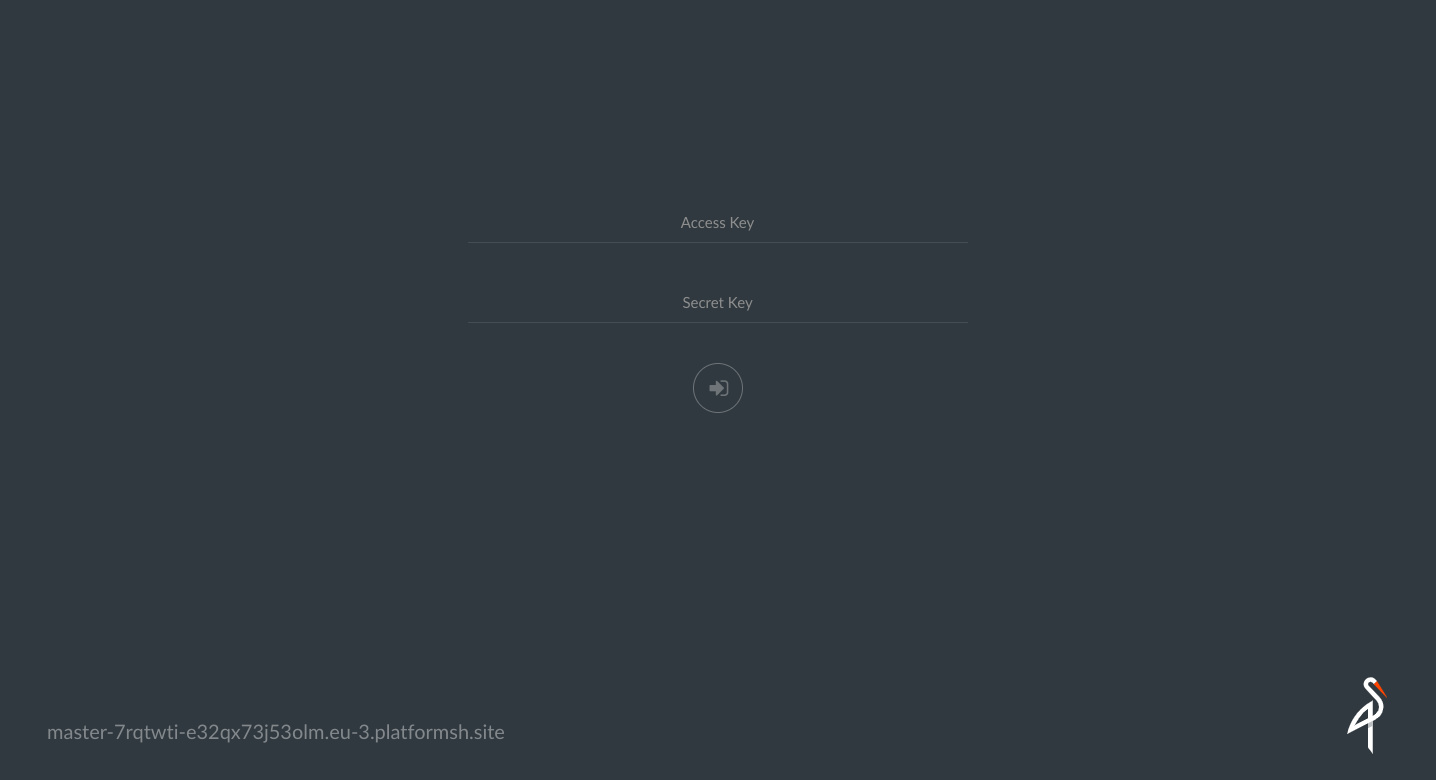
The Minio web UI page will be displayed and can be logged in with the MINIO_ACCESS_KEY and MINIO_SECRET_KEY values specified in .platform.app.yaml previously.
Conclusion
The Minio server and web UI are running and ready to handle file requests.
Comments
Please sign in to leave a comment.